BlogArticles
Your company intranet is hiding in plain sight
12 Jan 2026 (updated 7 Nov 2026) · Maks, architect and BIM manager. 10+ years on architectural projects, including 30 project SharePoint sites.
Some architecture practices are stuck in the folder maze. A SharePoint intranet on the Microsoft 365 licence you already pay for is the simpler fix.
A SharePoint intranet is a Communication site on Microsoft 365 that gives an architecture practice one landing page for news, templates, policies and training. It needs no code. SharePoint is included in the Microsoft 365 Business Basic, Standard and Premium plans, so the main cost is setup time.
It is relatively easy to set up and to manage afterwards. It is familiar, because most of us already use Microsoft 365. And most importantly, it is cost effective. If you are on one of those plans, the only thing missing is the actual setup.
SharePoint offers a no-code website builder for the front end. Behind it sit simple, familiar document libraries, the same way you already store files. You then display that content on the site using different web parts.
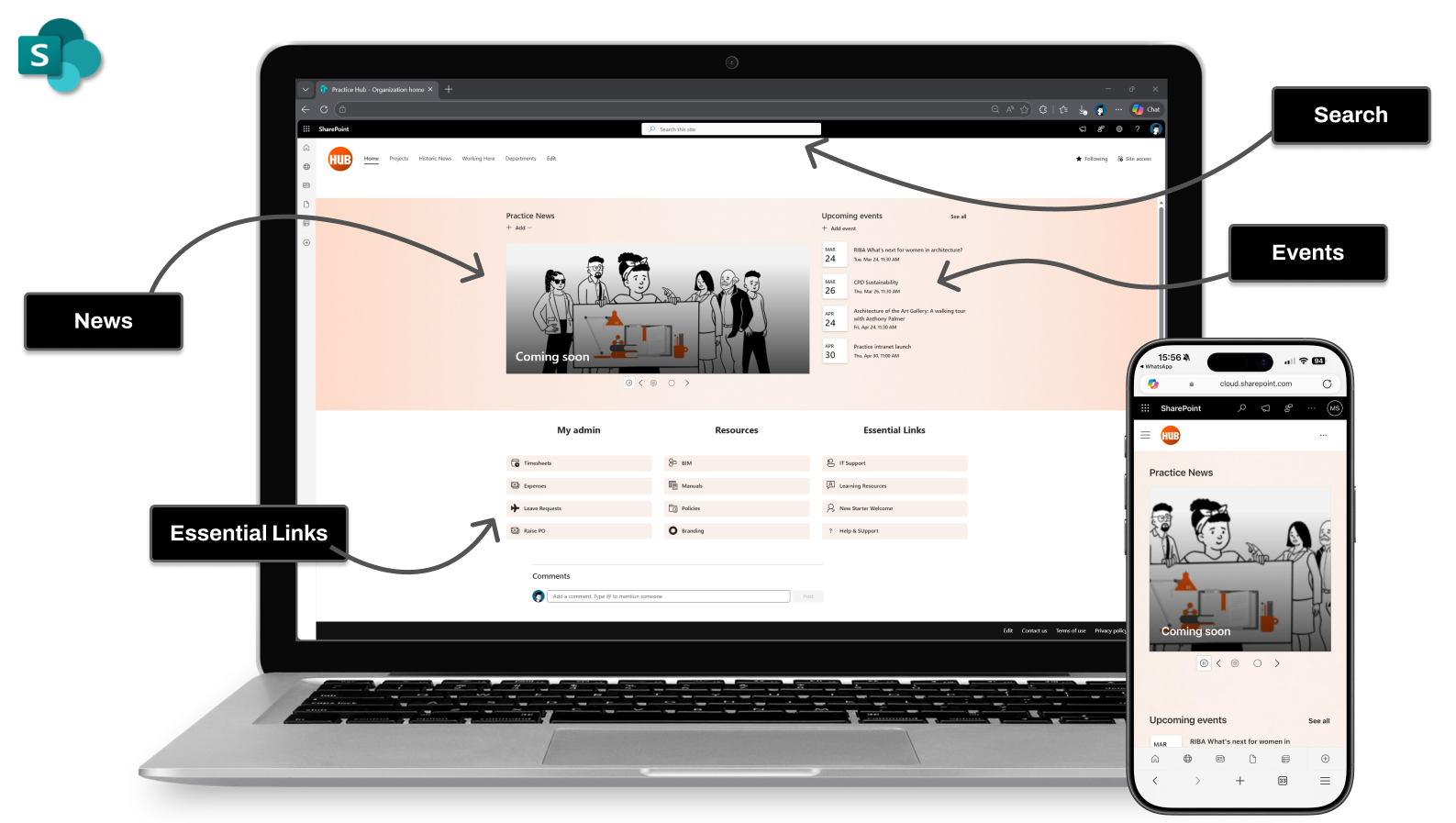
Example SharePoint intranet. Image: Systemais.
Why is a folder system a poor way to share company information?
Because nobody can find anything in it without asking somebody else for help.
Many practices still keep their resources, manuals, templates and policies in folders on a server. That worked when the office was small and one person knew where everything lived. It is no longer an efficient way to communicate or manage that information. It simply cannot be managed well.
Look at what happens in practice. New starters ask on Teams where the current template is. Someone emails "where is this saved?" and someone else sends a link to an old version. Files get copied "just in case" and the copy becomes the one people use. Policies are updated in one place and not the other. Nobody can say which version is the latest without checking with the person who set it up.
Folders have no way to tell people what is new, what has changed or what matters today. They are storage, not communication. A standard that nobody can find might as well not exist.
A company intranet fixes that by putting the information where people already look, with a clear path to each item and news on the front page. You can use any no-code website builder for it, but SharePoint Sites is the simpler option for most practices.
Note: SharePoint is included in Microsoft 365 Business Basic, Standard and Premium. It is not included in Microsoft 365 Apps for business, so check which plan you are on. See Microsoft's plan comparison.
How do you set up a SharePoint intranet?
A very short version. First, check that your Microsoft 365 licence includes SharePoint. If it does, you then need SharePoint admin rights on your Microsoft 365 tenancy.
- Create the site. Open the SharePoint admin centre, create a new site and pick Communication site. The setup steps are very straightforward.
- Choose a good site name. Avoid changing it afterwards, so get it right from the start. Call it the Hub, the company intranet, or whatever else you like. It will be used in day-to-day speech all the time, so keep it simple and easy to remember.
- Click create. That is it. You now have your company SharePoint site.
- Set up a basic structure. Decide what the landing page looks like and where files are stored. Build the landing page first, then a series of libraries by key topic, such as policies and templates.
- Edit, then publish. You can save drafts as you go. Click publish and the site updates instantly for everybody.
- Invite the practice. Once you are happy with it, give everyone access. The easiest way is through a Microsoft 365 group. There is a built-in group for everyone in the organisation, so anyone with an account gets access automatically.
That is the outline. There are plenty of YouTube videos that walk through each step on screen, so I will not repeat them here. The harder part is deciding what goes on the site, which is next.
References: Microsoft guide to creating a communication site, Microsoft walkthrough of communication site web parts and YouTube tutorials
Tip: do some study and research first. There is a lot of depth to how you store and display files, and what works for UI and UX and what does not. Keep it as simple as possible and focus on an MVP (minimum viable product: the smallest working version that is useful to people, such as a landing page, a news feed and a few key libraries). Updates can be added later. Make a commitment to it, and try to get management support and resource allocation, because it will not build itself.
Or ask the Systemais team to help. Get in touch.
What goes on a practice intranet?
The aim is to bring project standards, policies, HR resources and company news into one place. SharePoint's standard no-code tools cover most of it, with a light layer of customisation on top. A typical structure looks like this:
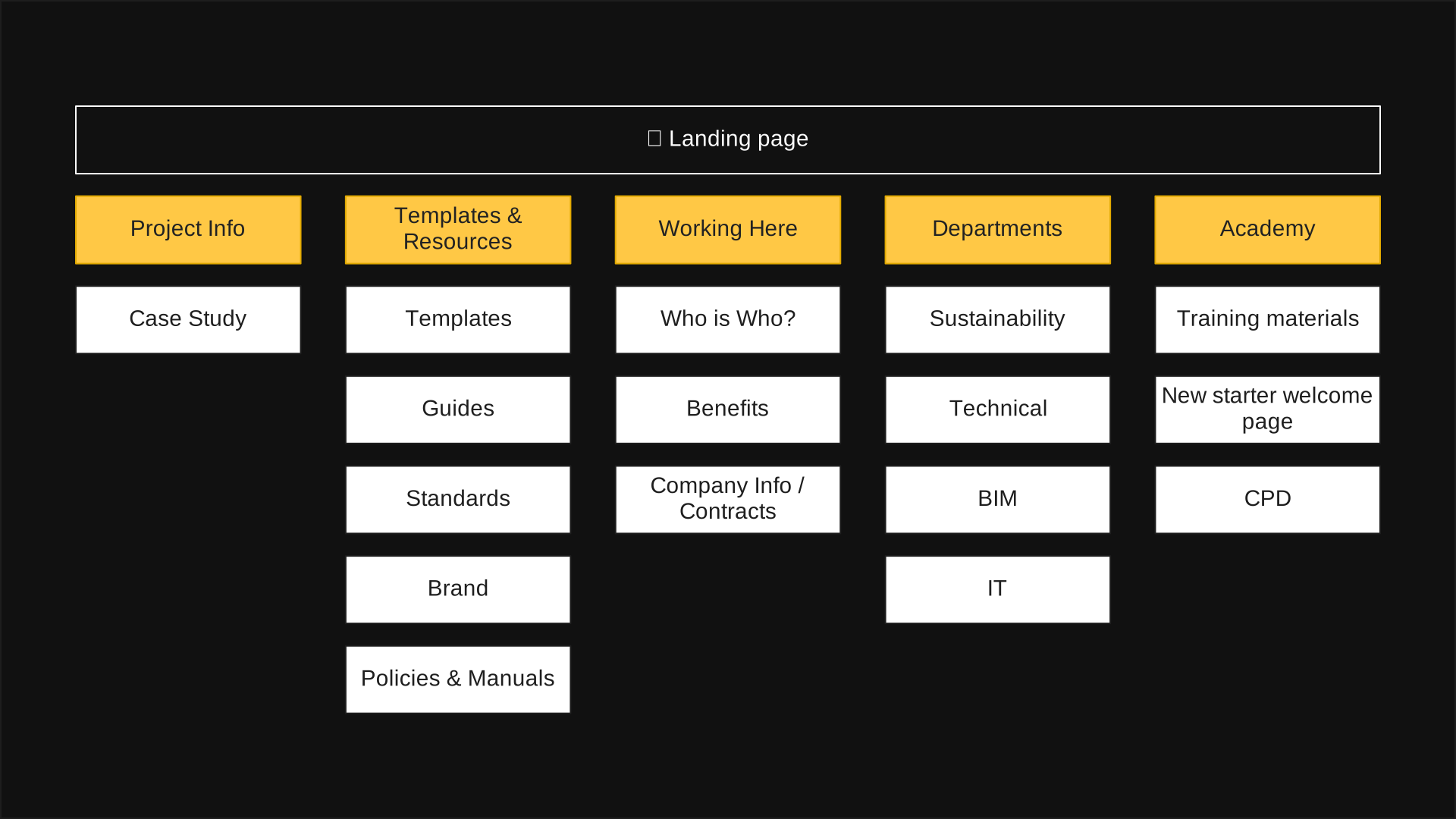
Example intranet structure. Diagram: Systemais.
What an intranet should include, but not limited to:
- Landing page: live news, practice updates and announcements, so everyone sees the same thing. It is the front door to everything below.
- Project Info: project case studies. Live project documents belong in a common data environment instead, see CDE explained simply.
- Templates and Resources: templates, guides, standards, brand guidelines, and policies and manuals.
- Working Here: a "Who is Who?" directory, staff benefits, and company information and contracts.
- Departments: a page for each team, such as Sustainability, Technical, BIM and IT.
- Academy: training materials, a new starter welcome page and CPD.
What changes once people use it?
In my experience there are fewer emails asking "where is this saved?" or "how do I do X?", because the answer is always in the same place. New starters find their way around much faster. News and events reach the whole office, and people feel more connected to the wider practice.
What are the downsides of a SharePoint intranet?
It is not all smooth. Getting people to change their habits is the hardest part.
- Cultural resistance: changing how a practice works is a big ask. People dislike change, and it takes time for them to trust a new way of working. A common reaction is "why fix something that is not broken?"
- The SharePoint rabbit hole: the front end is friendly. The back end is not. It takes patience to set up correctly.
- Upkeep: information will not manage itself. Someone still needs to keep the intranet up to date and curate the information, otherwise it goes stale like the folders did.
My best tip for adoption: set the intranet as the auto-open page in everyone's browser. If people see the news and quick links the second they start their day, they will actually use them.
Where should you start?
Do not overthink it, and do not try to make it perfect. Start small, for example a simple landing page that shares practice news. If it is useful, the ideas will grow on their own. But get the foundations right at the start, because restructuring permissions and libraries later is the painful part.
You do not need a big budget or a team of developers. You need a bit of planning and a design that suits the people using it. The tools are most likely already on your desktop.
Final thoughts
Folders and servers are no longer an efficient way to share company information, because nobody can find anything without asking someone. SharePoint is probably already in your Microsoft 365 licence, and it gives you a no-code front end on top of the document libraries you already know. Start small with an MVP, build a clear structure (landing page, resources, working here, departments, academy), and get management support behind it. The hard part is not the licence or the build, it is getting people to use it.
If you need help setting up a company intranet, get in touch.
Subscribe
Occasional notes on practice tools and systems. No spam.